E‑Shikshakosh App Download for Android – Bihar Education App
Looking to streamline your school management tasks in Bihar? The E‑Shikshakosh app is your go-to tool. Developed by the Bihar Education Project Council (BEPC), this app is tailored for teachers, school administrators, and education officials to manage attendance, inspections, and more.
How to Download the E‑Shikshakosh App
On your Android device, open the Google Play Store app
n the search bar, type “E‑Shikshakosh” and press enter.
Look for the app developed by “Bihar Education Project Council” and tap on it.
Click on the “Install” button to begin downloading and installing the app on your device.
: Once installed, tap “Open” to launch the app.
Key Features of the E‑Shikshakosh App
Attendance Management:
Capture and manage the attendance of teachers and students efficiently.
School Inspections:
Conduct inspections for programs like BEST+, DIVYA, and KGBV.
Nearby School Search:
Easily locate and view nearby government schools.
User-Friendly Interface:
Designed for ease of use, making school management tasks simpler.
How to Set Up Your Account on the E‑Shikshakosh App
After downloading the app, setting up your account is the next important step. Here’s how to get started:
Open the App:
Launch the E‑Shikshakosh app from your device..
Register or Log In:
New Users: Click on the “Register” option and fill in your details (such as your teacher ID, school information, and mobile number).
Existing Users: Enter your credentials (username and password) to log in.
Set Up Your Profile:
Once logged in, complete your profile by adding your school details, contact information, and role.
After setting up, you’re ready to begin using all the features the app offers!
How Teachers Can Use the E‑Shikshakosh App for Daily Tasks
The E‑Shikshakosh app makes daily tasks for teachers much easier. Here’s how you can use it:
Mark Attendance:
Teachers can mark both student and staff attendance directly through the app.
Track School Programs:
Teachers can monitor and track the progress of school programs, such as the BEST+ initiative
Submit Reports:
Quickly submit progress or inspection reports directly through the app.
These features save time and reduce paperwork for teachers, making their work more efficient.
School Administrators: How to Manage School Data via E‑Shikshakosh
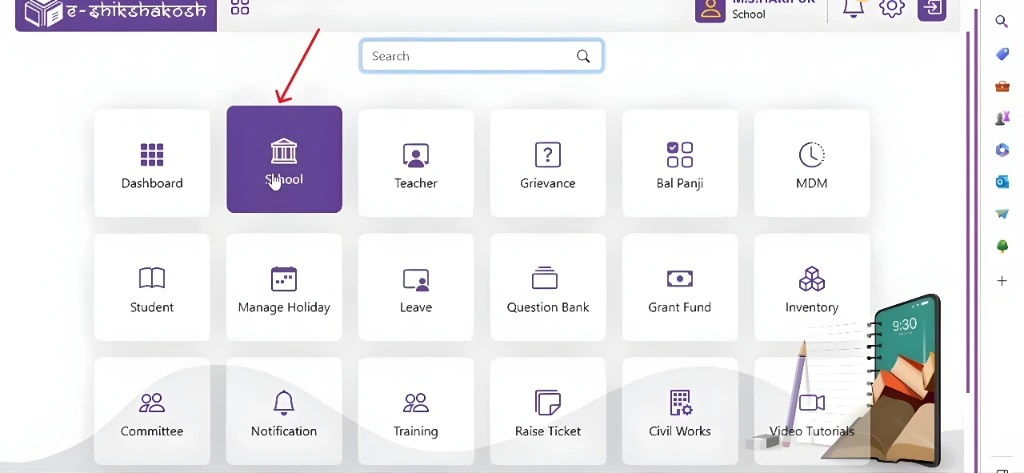
For school administrators, the E‑Shikshakosh app offers tools to manage school operations and data:
This feature helps administrators stay on top of their school’s operations and ensures smooth functioning.
Syncing Data Between Devices and the Web Portal
To ensure consistency and prevent data loss, it’s crucial to sync your app data with the web portal:
Additional Features for School Inspections and Programs
The app is not just for daily tasks; it also offers special features to improve school programs and inspections:
These features help improve school quality and ensure that educational programs are running smoothly.
Why does the app mark attendance from locations far outside the 500-meter school radius?
This usually happens due to GPS lag or weak network signals. The app depends on your phone’s GPS, which can sometimes jump to a nearby tower and show you farther than you are. Solution: turn on high-accuracy location in phone settings, stand in an open area, and wait for GPS to stabilize before marking attendance.
How to fix the issue of being marked “absent” even after logging in correctly?
This glitch often happens when the app doesn’t sync data properly. After checking in, always wait until you see the green confirmation tick or “attendance submitted” message. If you don’t see it, retry after refreshing internet. You can also take a screenshot as proof and report it to your headmaster/DEO.
Why does the app sometimes auto-log “OUT” immediately after “IN”?
It’s a software bug triggered when network drops just after marking “IN.” The app misreads the request and logs you out. Fix: ensure stable internet, and avoid switching between Wi-Fi and mobile data during attendance. Updating to the latest version usually reduces this problem.
What to do when E-Shikshakosh app keeps hanging or failing to log in?
How can teachers update their “trained/untrained” status in the app?
Many teachers appear “untrained” even after completing training because their training data hasn’t been uploaded by the DIET/education office. Teachers should:
What steps should schools take if student profiles are not updated in the portal?
Schools need to log into the E-Shikshakosh web portal and complete pending entries—such as Aadhaar, caste, or income details. Headmasters can assign data entry to clerks or computer operators. Delay in updating may stop students from getting scholarships, so schools should prioritize this before verification deadlines.
Why are attendance requests still showing for retired or deceased teachers?
This happens because their records are not yet closed in HRMS. Until the HRMS marks them as “inactive,” the app keeps requesting attendance. The school head must send the retirement/death certificate to the DEO for HRMS update. To avoid such issues, it’s important to regularly Update Your School Profile on the portal, ensuring accurate records and smooth functioning.
How to troubleshoot OTP/login failures when mobile number is linked with HRMS?
What to do if salary slips or service records are not showing correctly?
Salary slips and service records are pulled from the treasury/HRMS system. If they don’t appear:
How can rural teachers use the app smoothly in poor internet zones?
Important Notes
Final Words
The E‑Shikshakosh app is a valuable tool for managing educational tasks in Bihar’s government schools. By following the steps above, you can easily download and start using the app to enhance your school management experience.


